Setup help

Let Edisyn hear the other side

Edisyn works from two sources of sound: your microphone, and your computer’s own audio. The second one is what carries everyone else in the call. When it is off, the transcript holds only your half and Smart Response has nothing to answer.

Why it asks for something called Screen Recording

macOS puts system audio behind a permission named Screen & System Audio Recording. The name covers both, but Edisyn only ever takes the audio from it. Your screen is not recorded, not stored, and not sent anywhere. Screenshots happen only when you press the button yourself, and the image is read and discarded, never kept.

Nothing joins your call either. No bot, no extra participant, no notification to anyone else in the meeting.

macOS

  1. 1

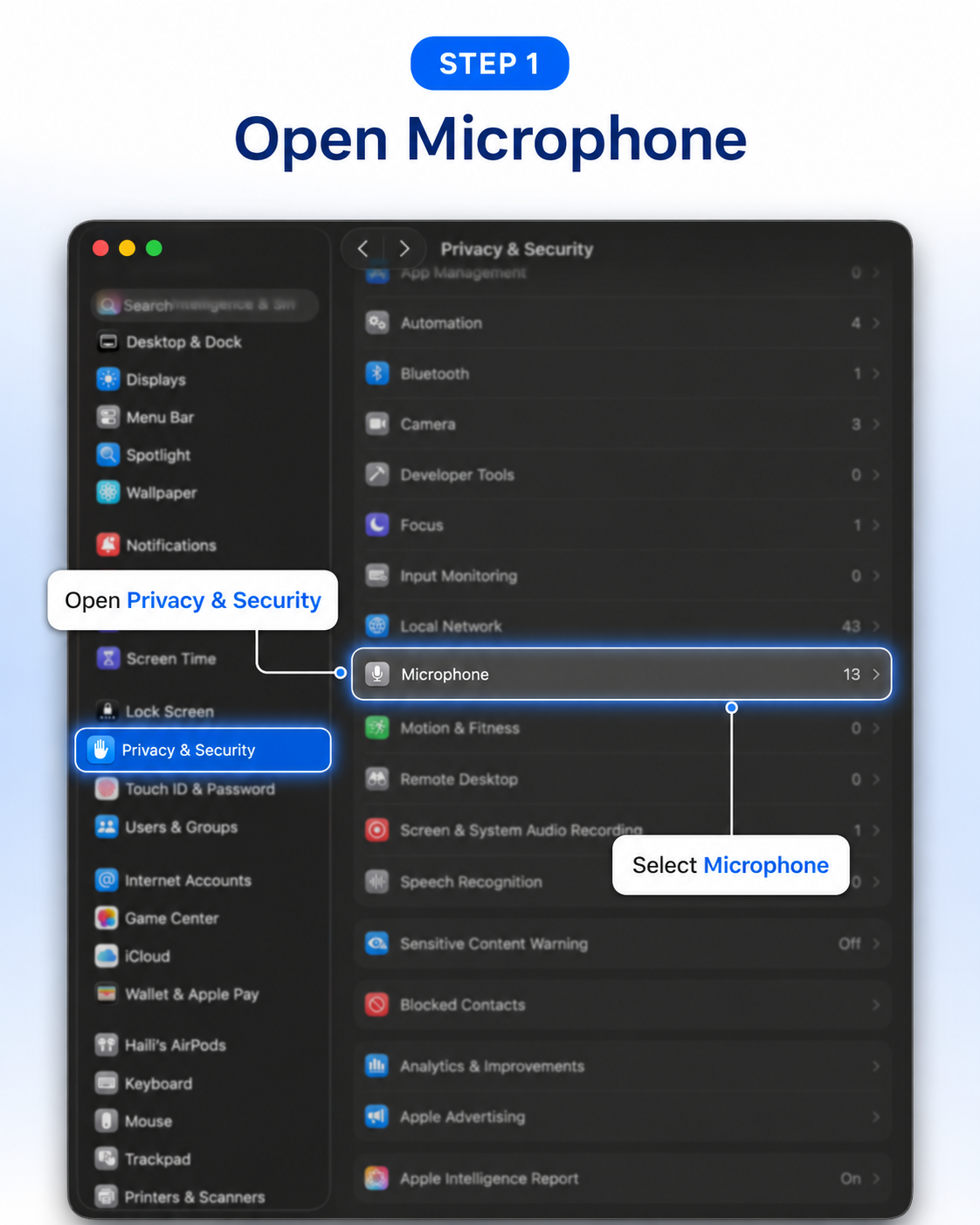
    Open System Settings, then Privacy and Security

    Everything below lives in that one pane.

  2. 2

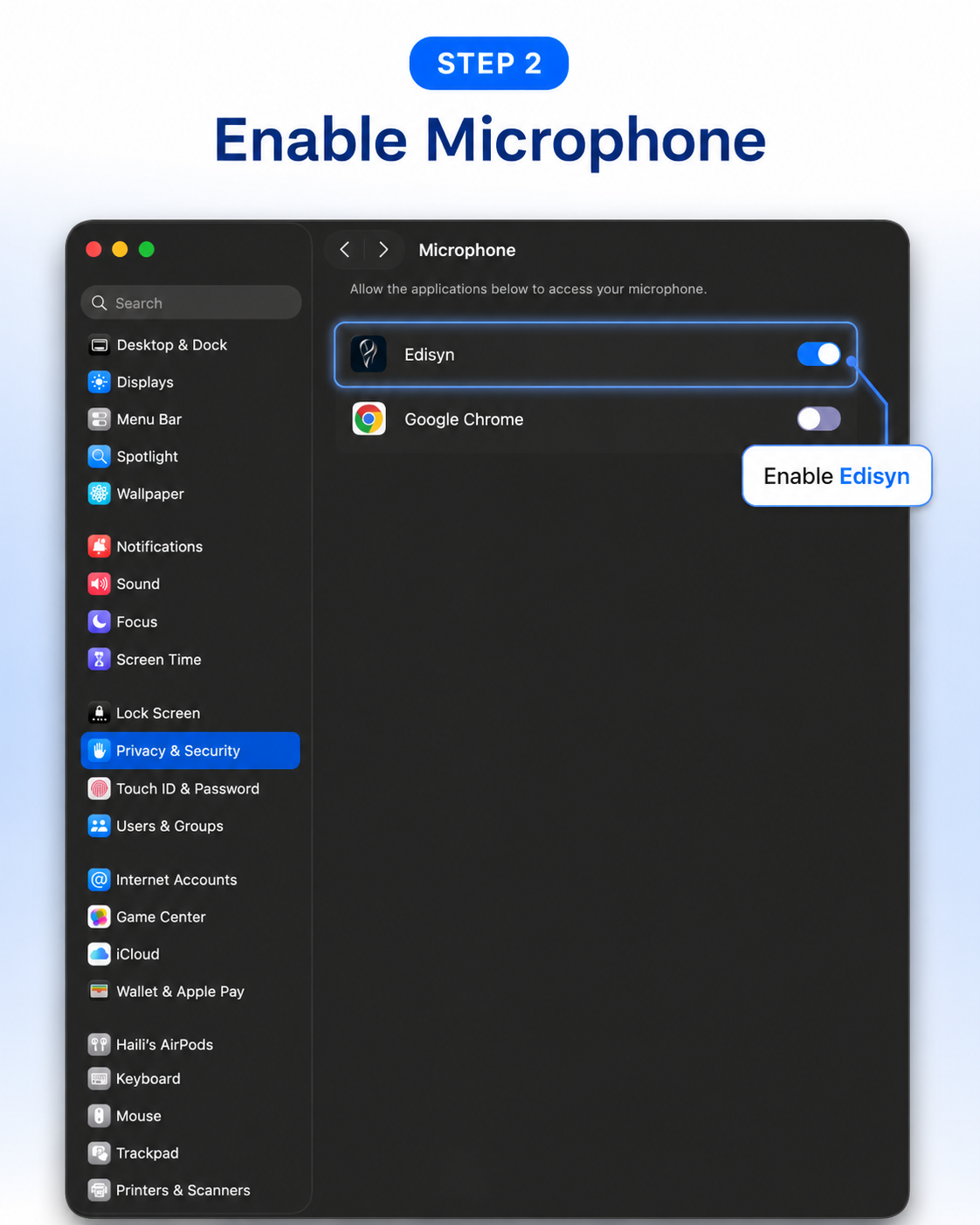
    Microphone

    Find Edisyn in the list and switch it on. This is the one most people already have.

  3. 3

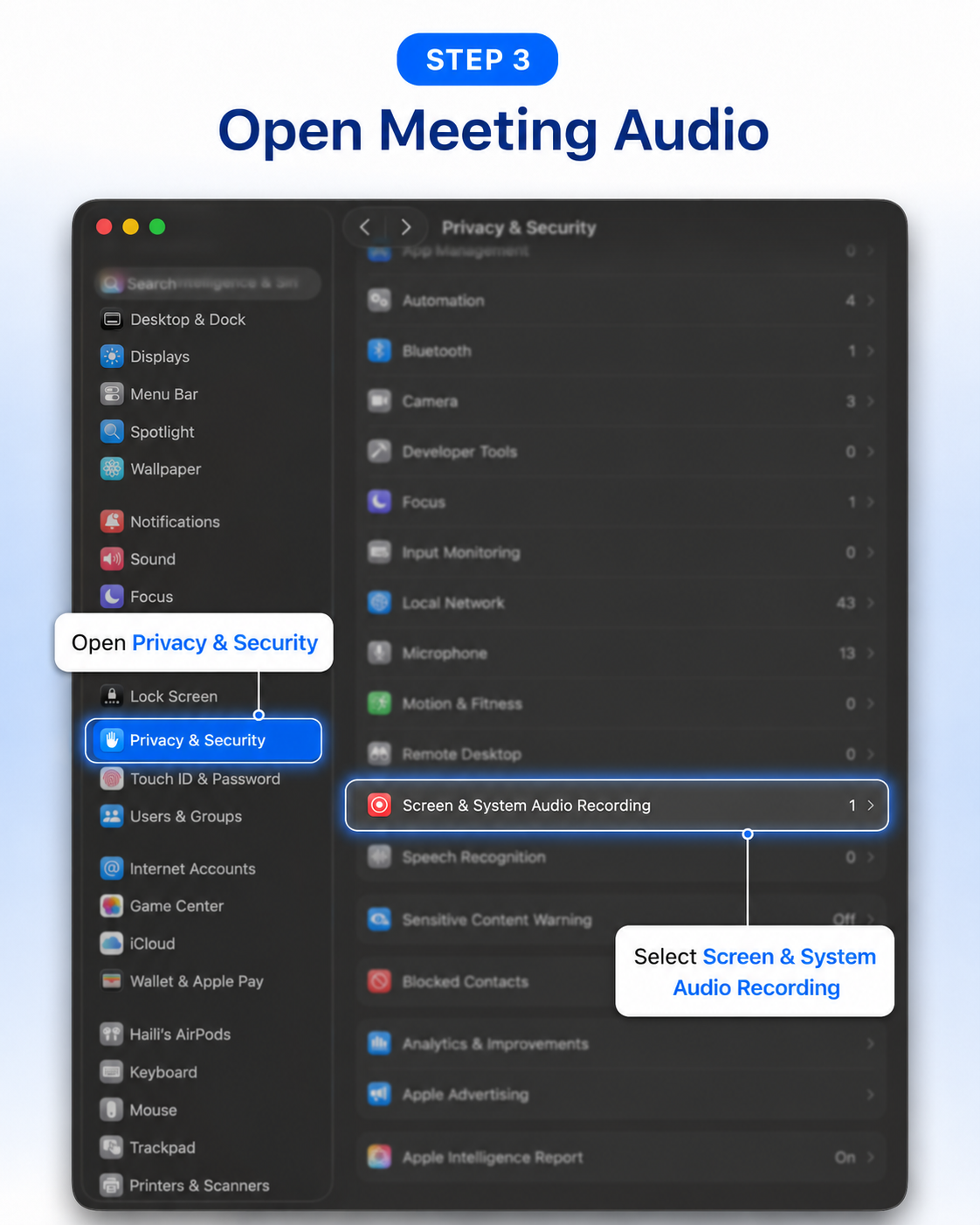
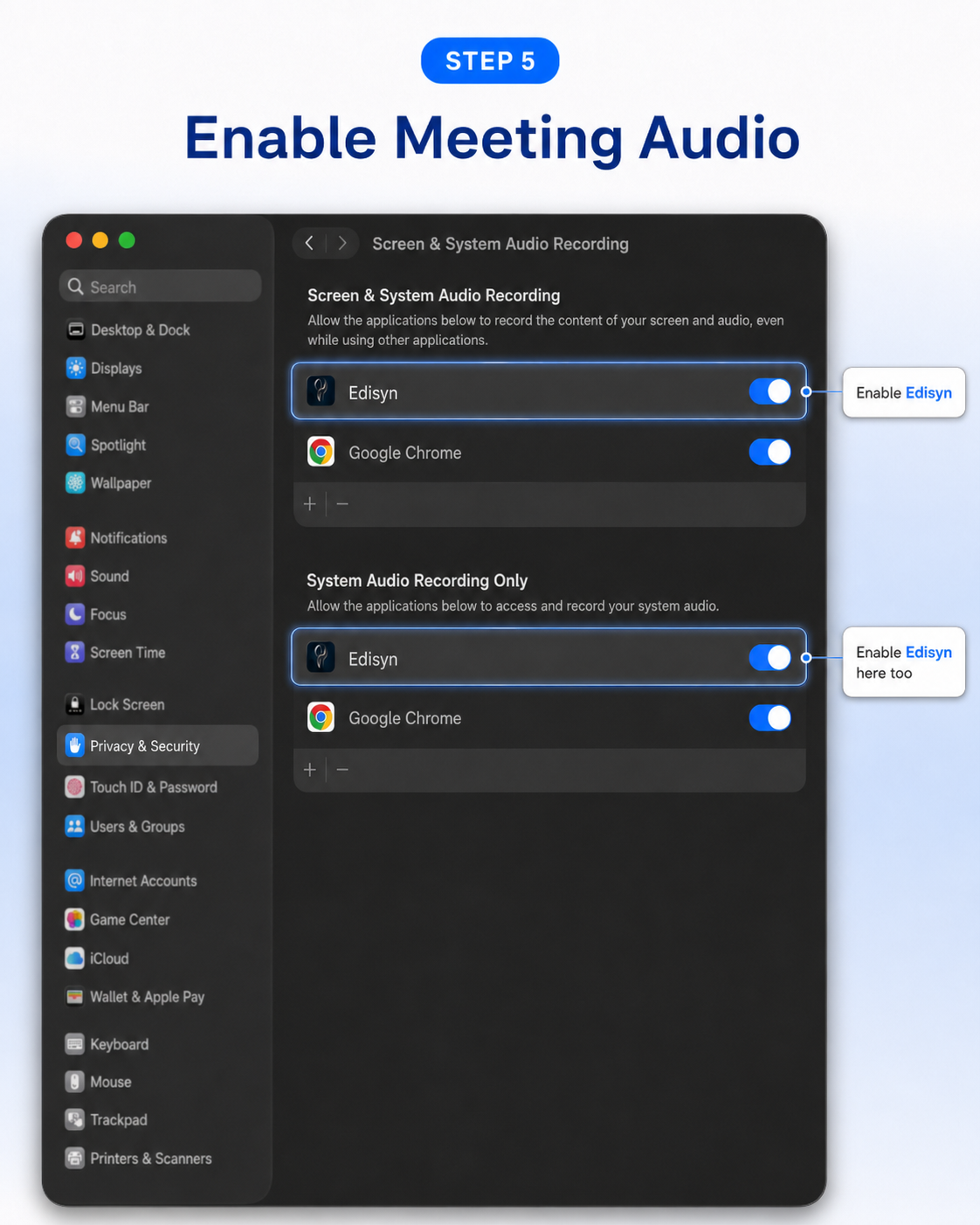
    Screen and System Audio Recording

    Switch Edisyn on here too. Despite the name, Edisyn only takes the audio from this permission. Your screen is never captured.

  4. 4

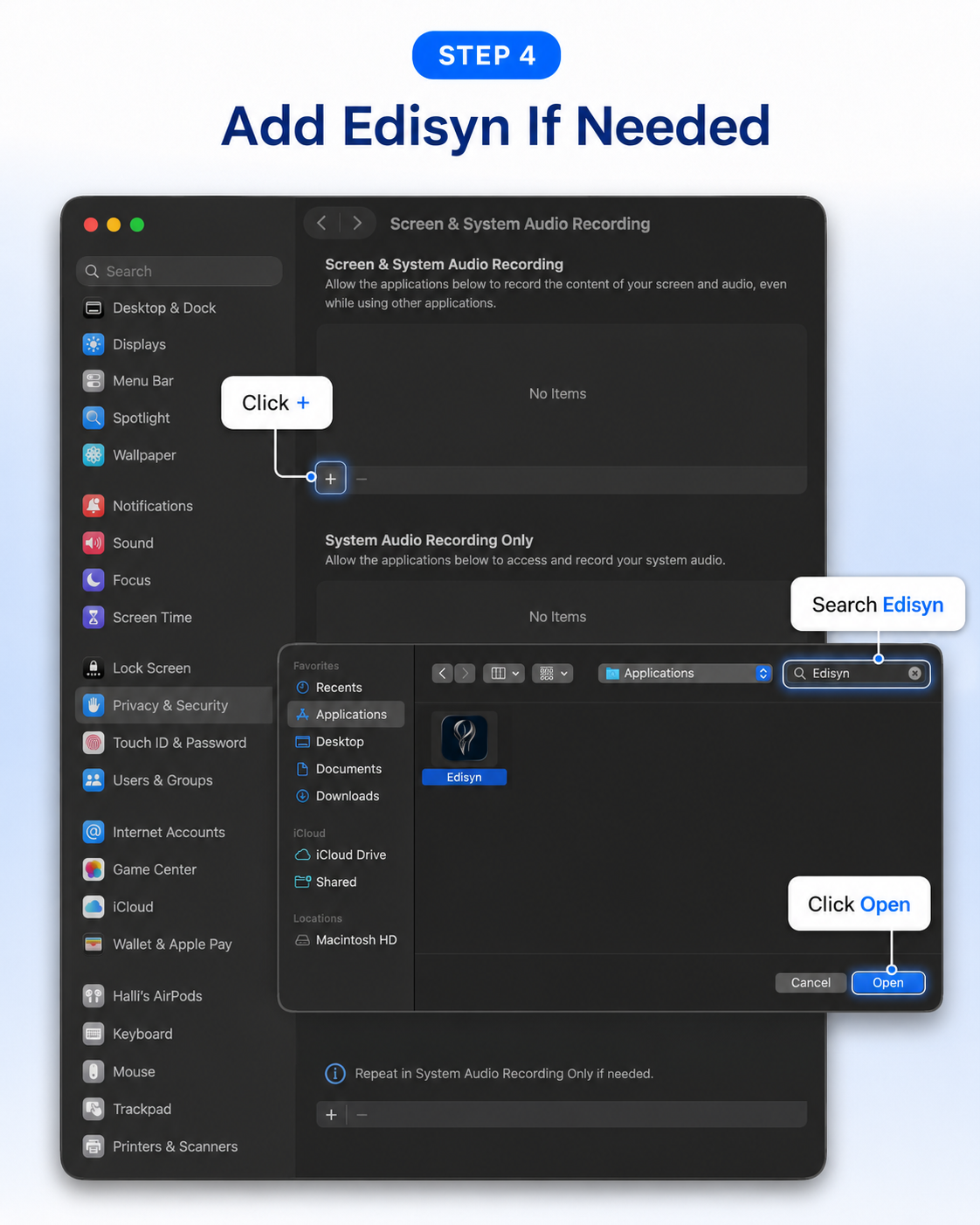
    System Audio Recording Only

    On macOS 15 and later this is a second, separate list further down the same page. Edisyn has to be on here as well. This is the one almost everybody misses, and if it is off capture fails silently.

  5. 5

    Quit Edisyn completely, then open it again

    Closing the window is not enough. Right click the icon in the Dock and choose Quit, then reopen. macOS only hands over the new permission to a fresh launch.

The macOS Privacy and Security pane. Five numbered callouts: open Privacy and Security, open Screen and System Audio Recording, switch Edisyn on, open System Audio Recording Only further down the same page, and switch Edisyn on there too.
Steps 3 and 4 above, on one screen. Edisyn has to be switched on in both lists. The lower one is what almost everybody misses, and while it is off audio capture keeps failing quietly. Open the full size picture if the labels are too small to read.

Windows

  1. 1

    Right click the speaker icon, then Sound settings

    Nothing has to be granted on Windows. What matters is which device the sound comes out of.

  2. 2

    Set the device you actually listen on as the default output

    Edisyn follows the default playback device. If the meeting plays through a headset that is not the default, that audio never reaches Edisyn.

Still only hearing yourself?

Start a call and let Edisyn run for a few seconds. If it spots a problem it shows a sound warning with a Diagnose and Fix button, which checks each permission and opens the exact setting that is missing.

If that still does not do it, write to support@edisyn.io and tell us what you are seeing. We will work it out with you.